
If you want AI Content Generator to write WordPress articles using GPT-4o, GPT-4 Turbo or any other OpenAI model, the plugin needs one thing from you: a valid OpenAI API key. The plugin doesn’t ship with one — every account uses its own credentials, billed directly to your OpenAI organisation. That’s the right design (your data, your usage, your costs), but it does mean a short configuration step the first time you set up the plugin.
This tutorial walks you through the entire flow end-to-end: creating the key inside the OpenAI Platform, configuring billing so the key actually works, pasting it into AI Content Generator, picking a model and finally setting OpenAI as the default provider so every campaign runs on it. Allow yourself ten minutes — once it’s done, you never touch it again.
What an OpenAI API key actually is
An API key is a long secret string (it starts with sk-…) that identifies your OpenAI account whenever software calls the OpenAI API on your behalf. Every request the AI Content Generator plugin sends to generate a title, an article body, a meta description or a featured image is signed with this key. OpenAI uses it to authenticate the request, charge the right account and apply your usage limits.
Two consequences worth keeping in mind: the key is as sensitive as a password (anyone who has it can spend your credit), and you should never paste it into a public repository, a screenshot, or a forum post.
Step 1 — Sign in to the OpenAI Platform
Open https://platform.openai.com in your browser. If you already use ChatGPT with the same email, the same credentials work here too — the OpenAI Platform shares the account but is a different product, dedicated to developers and integrations like our plugin.
If you don’t have an account yet, click Sign up, complete the email + phone verification, and you’ll land on the Platform dashboard. New accounts in 2026 generally get a small free credit allowance you can use to test the plugin before topping up.
Step 2 — Open the API keys page
Once logged in, look at the left sidebar of the Platform. You’ll find a section called API keys (sometimes also reachable via the gear icon → API keys). Direct link: https://platform.openai.com/api-keys.
This is the page where every key tied to your account lives. If it’s your first time you’ll see an empty list and a big Create new secret key button.
Step 3 — Create a new secret key
Click Create new secret key. A small dialog opens with a few fields:
- Name — give it something you’ll recognise later, for example AI Content Generator – my-site.com. This is just a label, OpenAI doesn’t read it. Naming keys per project saves you when you eventually have several keys to manage.
- Project — if your organisation has projects enabled, pick the one you want this key to belong to. Otherwise leave the default. Projects are useful for splitting usage and budgets between different sites.
- Permissions — choose All for the AI Content Generator plugin. The plugin needs to call Chat Completions, Embeddings (for some features) and Images (DALL-E for featured images), so a restricted key would fail at some step.
Click Create secret key and OpenAI shows you the full key, starting with sk-proj-… or sk-… depending on whether you’re on the legacy or projects model.
Important: this is the only moment you’ll see the full key. As soon as you close the dialog OpenAI only stores a hashed prefix. If you lose it you can’t recover it — you’ll have to create a new one.
Step 4 — Copy the key and store it safely
Click the copy icon next to the key. Then immediately paste it somewhere safe:
- A password manager (1Password, Bitwarden, Apple Keychain) is the ideal place
- A private note in your encrypted notes app works too
- Do not put it in plain-text files synced to public folders, email drafts, or anywhere a teammate without authorisation could see it
If you ever suspect the key was leaked, come back to this page and click Revoke. The key becomes useless instantly, and you create a new one. The plugin will keep working as long as you replace the value inside its settings.
Step 5 — Set up billing on OpenAI
This is the step most people forget, and the reason a freshly created key returns insufficient_quota errors as soon as the plugin tries to use it. OpenAI keys without an active billing method (or without remaining free credit) are technically valid but cannot make paid API calls.
In the Platform, open Settings → Billing (or https://platform.openai.com/account/billing). Add a credit card, then either:
- Buy a one-off credit top-up (e.g. $10 or $20 — typical AI Content Generator usage on a small blog burns roughly $0.02–$0.10 per generated article on GPT-4o-mini)
- Enable Auto recharge if you want it to refill automatically when the balance drops below a threshold
For safety, also set a monthly usage limit under Limits. A $30 or $50 hard cap is a sensible guardrail while you’re testing — the plugin will simply stop generating once the limit is hit, instead of running up an unexpected bill.
Step 6 — Open AI Content Generator settings in WordPress
Now the plugin side. Inside your WordPress admin go to AI Content Generator → Settings. Scroll down to the 🤖 OpenAI (GPT) section:
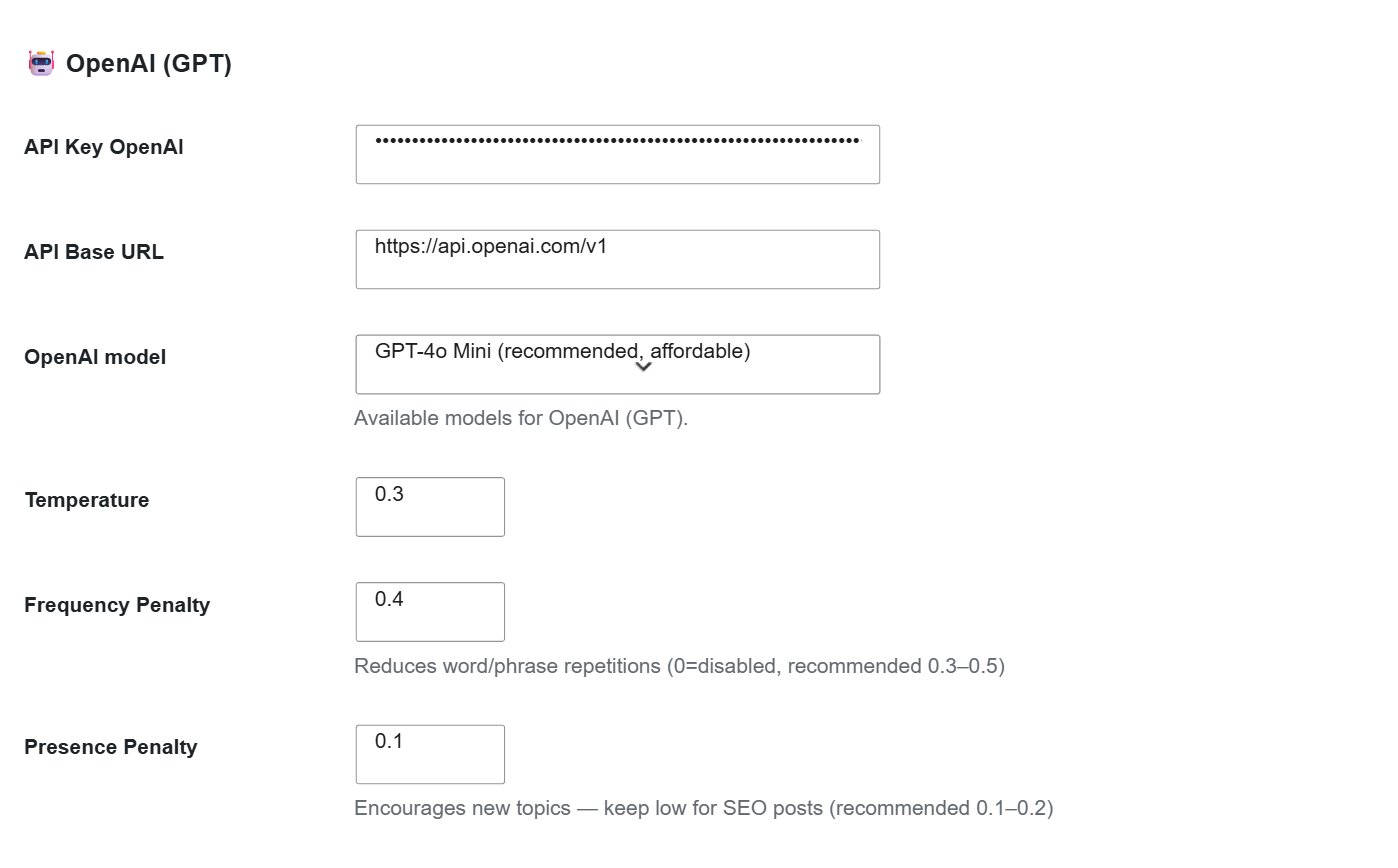
The fields you need to fill are:
- API Key OpenAI — paste the key you copied at step 4
- API Base URL — leave the default
https://api.openai.com/v1(only change this if you’re routing through a proxy or a self-hosted gateway) - OpenAI model — pick a default.
gpt-4o-miniis the sweet spot for everyday blog content (fast, cheap, good quality).gpt-4ois the best quality, slower and more expensive.gpt-4-turboandgpt-3.5-turboare still supported for compatibility but rarely the best choice in 2026. - Temperature — 0.7 is a balanced default. Lower (0.3–0.5) gives more deterministic, factual output; higher (0.9–1.0) increases creativity but also hallucinations.
- Frequency / Presence penalty — leave at 0 unless you have a specific reason to bias against word repetition. The plugin’s anti-duplication logic already handles most cases.
Step 7 — Set OpenAI as the default provider
Right below the providers you’ll find the Default provider selector:

Switch it to OpenAI. From now on, every new campaign uses GPT by default — you can still override it on a per-campaign basis if you want a specific article to use Claude or Gemini instead.
Click Save settings at the bottom of the page. The plugin runs a quick credential check in the background; if the key is valid and billing is active you’ll see a green confirmation. If it isn’t, the error message will tell you exactly what’s wrong (most often: missing billing).
Step 8 — Run a test campaign
The fastest way to confirm everything works is to launch a one-off test:
- Go to AI Content Generator → New campaign
- Pick On demand, type a single test title (e.g. Test article — OpenAI integration check)
- Set the provider to OpenAI and the model to
gpt-4o-mini - Click Generate
Within a few seconds you should see a fully written draft post in your Posts → Drafts list. If you do, congratulations — your OpenAI integration is live.
Troubleshooting common errors
401 Unauthorized/Invalid API key— you probably copied the key with a leading or trailing space, or copied only part of it. Go back to the API keys page (you can’t see the full key any more, but you can create a new one) and paste the fresh value.429 You exceeded your quota— billing is not set up, or your monthly limit has been reached. Check Settings → Billing → Usage.model_not_found— the model name in the plugin doesn’t match an active OpenAI model. Switch togpt-4o-miniand try again.- Plugin saves but campaigns time out — check that your server can reach
api.openai.comoutbound on HTTPS. Some shared hosts block external API calls by default.
Tips to keep costs predictable
Once OpenAI is active, your bill scales with the number and length of articles you generate. Three habits that keep the meter friendly:
- Default to
gpt-4o-minifor bulk publishing and reservegpt-4ofor cornerstone articles you’d happily pay 5–10× more for. - Use the plugin’s article length controls — a 1,200-word article costs roughly twice as much as a 600-word one. The Editorial Calendar and content presets let you set the right length per campaign.
- Always set a hard monthly limit on OpenAI billing. It’s free insurance against a misconfigured cron or a runaway campaign.
You’re done
That’s the whole flow: create the key, top up billing, paste it into the plugin, pick a model, mark OpenAI as default. From here every campaign — including scheduled ones that fire from WordPress cron in the background — will use GPT to write your articles.
If you also want to plug in Claude or Gemini as fallback providers (good idea for redundancy when OpenAI has an outage), they follow the exact same pattern: get a key from the provider’s console, paste it into the matching section of the plugin settings. We cover each one in its own tutorial inside the Plugin Tutorials category.