
If you want Google’s Gemini family to write your WordPress posts, you need two things: an API key issued by Google AI Studio (Google’s developer console for the Gemini API) and AI Content Generator configured to use it. The key is the credential the plugin sends with every request so Google knows who’s calling, which billing project to charge and which usage limits to apply.
This guide walks through the whole flow end-to-end: opening Google AI Studio, picking the right Google Cloud project, generating the key, copying it without losing characters, optionally enabling billing for higher quotas, and finally wiring everything up in AI Content Generator so your campaigns start producing Gemini-written drafts.
By the end you’ll have an API key saved inside the Google Gemini card of AI Content Generator Settings, a Gemini model selected as the default for new campaigns, and a first AI-written draft sitting in your Posts → Drafts list. The whole process takes about ten minutes the first time around.
Why Gemini is a useful third provider
AI Content Generator supports three providers at once: OpenAI, Anthropic Claude and Google Gemini. There’s no need to pick one and ignore the others — having more than one provider configured turns into real reliability when a provider has an incident or hits a rate limit. The plugin can automatically fall back to a secondary provider if the primary returns an error, so your daily publishing cadence keeps going even when one vendor has a bad afternoon.
Gemini in particular has two characteristic strengths: it’s extremely fast on shorter content (Gemini 2.0 Flash answers in single-digit seconds for a typical blog post), and it has a generous free tier that makes it perfect for staging environments, A/B tests and high-volume short-form publishing. For long-form pillar content you’ll likely prefer Claude or GPT, but for news roundups, summaries and listicles Gemini delivers excellent quality at very low cost.
Step 1 — Open Google AI Studio
Open https://aistudio.google.com in your browser. Google AI Studio is the developer-facing portal for the Gemini API: it lets you experiment with prompts in a playground, create API keys, manage quotas and check usage metrics. If you already use Google Workspace or any Google Cloud product, sign in with the same account.
The first time you log in, Google asks you to accept the AI Studio terms of service. Read through them once (the important bit is that prompts and outputs from the free tier may be used to improve Google models — disable this in the privacy controls if you don’t want that). Once accepted, you land on the AI Studio dashboard.
Step 2 — Pick or create the right project
Gemini keys are scoped to a Google Cloud project — even if you never use Google Cloud otherwise, you’ll need at least one project to host the key. AI Studio creates a default project on your first visit and you can use it without any additional setup. If you prefer to keep your WordPress integration isolated from other Google Cloud work, click the project selector at the top, then Create new project, and name it something like “wordpress-ai-content”.
Keeping a dedicated project has two benefits: usage charts for the project map exactly to your WordPress site, and you can later add per-project budget alerts to catch any runaway campaign before it eats your monthly budget.
Step 3 — Generate the API key
In the AI Studio left sidebar, click Get API key (or go directly to aistudio.google.com/app/apikey). The page shows you the list of existing API keys for the current project. Click the prominent Create API key button.
Google shows a small dialog asking which project to associate with the key (the current one is preselected). Confirm by clicking Create API key in existing project. After a couple of seconds, the new key appears in the list. Click the eye icon to reveal it: a long string that looks roughly like AIzaSyA… followed by a random tail of letters, digits and symbols.
Unlike Anthropic, Google lets you view the full key as many times as you want — but the principle stays the same: treat it like a password. Anyone with the key can call the Gemini API on your billing project’s dime.
Step 4 — Copy and store the key safely
Click the copy icon next to the key. Then paste it immediately into a password manager (1Password, Bitwarden, Apple Keychain) under a clearly named entry such as “Gemini API key — my-site.com”. A secure note inside an encrypted notes app works too.
- Don’t paste it in plain-text files synced to public folders, in email drafts, in Slack DMs, or anywhere a teammate without permission could see it.
- Never commit it to a git repository — even private repositories get forked, cloned and copied; Google’s automated scanners actively look for leaked keys on GitHub and will email you the day a key shows up.
- If you ever suspect a leak, come back to the AI Studio API keys page and delete the key. You can create a new one in fifteen seconds.
Step 5 — Enable billing for production traffic
Google’s free tier for Gemini is generous (60 requests per minute on Gemini 2.0 Flash at the time of writing), but it caps daily usage and sometimes throttles unpredictably during peak hours. If you plan to run a serious editorial calendar — say, more than ten articles per day across all campaigns — enable billing to move to the paid tier with higher and steadier limits.
In the Google Cloud Console (a separate but linked surface from AI Studio), go to Billing in the left sidebar, attach a credit card to the project that hosts your Gemini key, and set a monthly budget alert. A $30 cap is a sensible starting point. The alert sends you an email when you hit a configurable percentage of the budget; the cap doesn’t shut down the API automatically (Google never stops paid services without confirmation), so the email is your trigger to investigate.
Step 6 — Open AI Content Generator settings in WordPress
Switch over to WordPress admin. Go to AI Content Generator → Settings. Scroll past the OpenAI card and the Anthropic Claude card until you reach the section titled 🟩 Google Gemini.
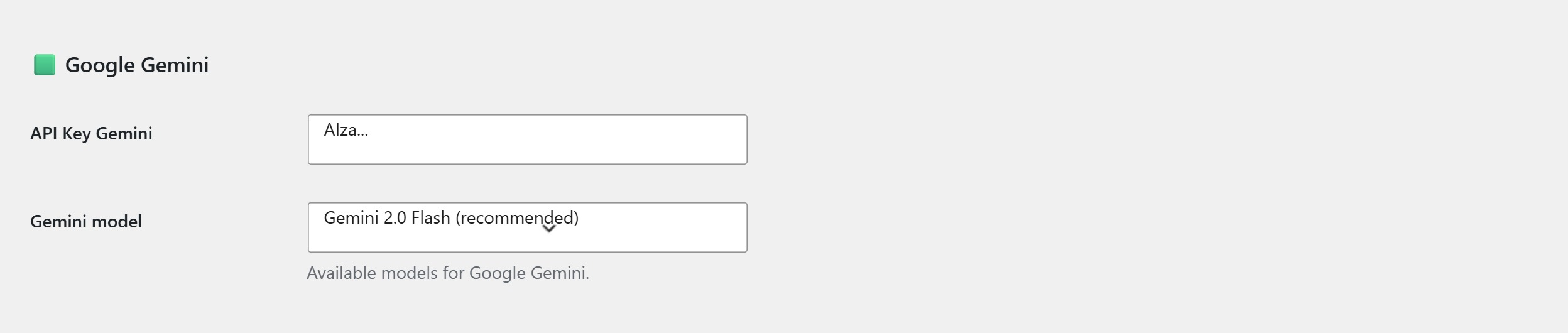
The fields you fill are:
- API Key Gemini — paste the
AIza…key you copied at step 4. The plugin masks the input as you type; double-check there is no leading or trailing space. - Gemini model — pick the default model for new campaigns. Gemini 2.0 Flash (recommended) is fast, cheap and good enough for the vast majority of blog content. Gemini 1.5 Pro is the option to pick for cornerstone articles where you want maximum reasoning quality. Both stay in the dropdown unless Google deprecates them.
Click Save settings at the bottom of the page. The plugin runs a quick credential check in the background. If the key is valid, the Connection status row turns green with “Gemini: configured”; if something is wrong, the row stays red with a hint explaining why (invalid key, project missing billing, network blocked from the WordPress server).
Step 7 — Make Gemini the default provider (or not)
Right under the three provider cards there’s the Default provider selector. Switch it to Google Gemini if you want every new campaign to use Gemini unless you override the choice. If you prefer to keep OpenAI or Claude as the primary writer and use Gemini only as a fallback, leave the default unchanged and configure the fallback rules in the Runner & Compatibility section further down.
A common, very effective configuration is: Claude as primary for long-form, Gemini as secondary for fallback, OpenAI as tertiary. With this layout the plugin always has a writer available and you optimise quality on the primary while keeping a cheap safety net.
Step 8 — Run a test campaign
The fastest way to confirm everything works is a one-article test campaign:
- Go to AI Content Generator → Campaigns → New campaign
- In the AI Provider sidebar metabox, confirm Google Gemini is selected (or pick it now if it’s not the default)
- In Manual titles, type a single test title, e.g. Test article — Gemini integration check
- Set Output status to Draft for safety
- Click the blue Generate content for selected titles button
Gemini 2.0 Flash usually answers in 10–20 seconds. The draft appears in your Posts → Drafts list. Open it: you should see a properly structured article respecting your tone, length and structure settings. If you do, the integration is alive.
Troubleshooting common errors
- 400 INVALID_ARGUMENT / API key not valid — the key was copied with whitespace or only partially. Go back to AI Studio, copy again, paste again, save.
- 403 PERMISSION_DENIED — the Gemini API is not enabled for the project that owns the key. In Google Cloud Console, open APIs & Services → Library and enable “Generative Language API” for the project.
- 429 RESOURCE_EXHAUSTED — you hit the free-tier rate limit. Either wait, enable billing for higher limits, or raise the Interval between generations in the campaign settings.
- The plugin saves but campaigns time out — the WordPress server can’t reach
generativelanguage.googleapis.comon HTTPS. Ask your host to allow outbound HTTPS to that domain. - Status row stays grey “not configured” even after saving — refresh the page; if it persists, check the Logs panel for the exact error returned by Google.
Keeping Gemini costs predictable
Gemini’s pricing is among the lowest in the market, but bills still add up if you don’t watch them.
- Stay on Gemini 2.0 Flash for bulk publishing. It produces blog-grade output at a fraction of the cost of Pro. Reserve Pro for the handful of cornerstone articles where you’d happily pay more.
- Use the content brief length controls. A 1,200-word article costs roughly twice as much as a 600-word one. Set realistic length ceilings per campaign.
- Always configure a budget alert in Google Cloud. Free insurance against a misconfigured campaign that keeps regenerating titles overnight.
You’re done
That’s the full flow: create the key in Google AI Studio, optionally enable billing, paste it into the Gemini card in AI Content Generator Settings, pick a Gemini model, decide whether Gemini is primary or fallback, run a one-article test campaign.
From here you can layer Gemini with OpenAI and Claude inside the same WordPress site. AI Content Generator handles fallback routing transparently, so each campaign always has a working writer — and your editorial calendar keeps moving regardless of which vendor has the better afternoon.