
AI Content Generator ships with an auto-update mechanism that mirrors WordPress core’s own: when a new version is released, WordPress detects it, shows a notice next to the plugin, and lets you update with one click from the standard Plugins or Updates page. No FTP, no manual ZIP re-upload, no configuration — the same workflow you use for every other WordPress plugin.
This tutorial covers the entire update flow: how the plugin detects new versions (license-server handshake), the two paths for triggering the update (Updates page vs Plugins page), what happens during the update (database migrations, cache invalidation), the pre-update safety habits, and the rollback procedure if the update introduces a regression.
By the end you’ll have a repeatable update habit that lands you on the latest version safely, with a backup available for rollback if needed. Total time per update: about two minutes.
How the plugin detects updates
Once every 12 hours (or when you visit the Updates page manually), WordPress pings our license server with your site URL, license key and current plugin version. The server responds with the latest available version and the changelog. If a newer version exists, WordPress marks the plugin as “update available” in the admin UI.
The check requires your license to be active. If the license expired, the plugin keeps working with the currently installed version but stops receiving update notices. Renewing the license from your account area restores update notifications within an hour.
Step 1 — Back up before updating
The two-minute pre-update ritual. Take a database backup and a plugins folder backup before every update, even minor ones. If you use UpdraftPlus, Duplicator, or a hosting-provided backup, click the “Backup now” button and wait for the confirmation. If you’re on managed hosting, most providers create automatic hourly snapshots that let you roll back with one click if something breaks.
This step is optional for patch versions (0.4.22 → 0.4.23) and mandatory for minor versions (0.4.x → 0.5.0) or major versions (0.x → 1.0). The plugin’s changelog flags any update that requires a database migration; those are the ones where backups matter most.
Step 2 — Open the Updates page
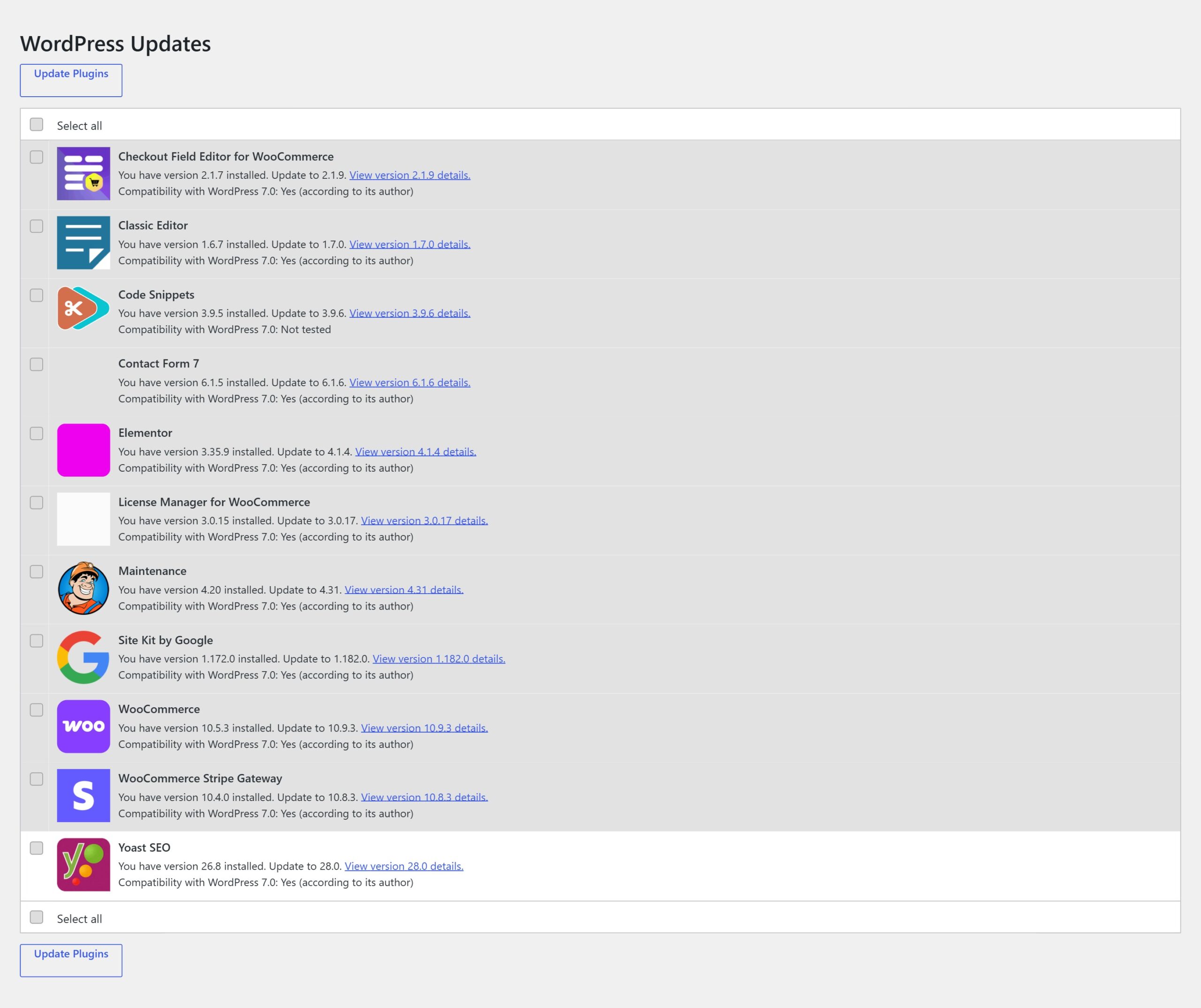
In the WordPress admin, go to Dashboard → Updates. The page lists all pending updates — core, themes, plugins. Scroll to the Plugins section. If AI Content Generator has an update available, it appears in the list with the current version, the new version and a link to the changelog.
You can also open the update from Plugins → Installed Plugins. Plugins with pending updates show a yellow banner directly below the plugin row saying “There is a new version of AI Content Generator available” with an “update now” link. Either path leads to the same update flow.
Step 3 — Read the changelog before clicking Update
Click “View version X.Y.Z details” to open the changelog in a modal. The changelog lists what’s new, what changed and what’s fixed since the currently installed version. Two categories deserve attention.
- Breaking changes — features that require reconfiguration (a Settings field renamed, a default value changed). The changelog marks these clearly. Read them; if any affects a running campaign, plan the update for a quiet moment.
- Database migrations — updates that need to migrate schema (add columns, rename options). The changelog says “This update includes a database migration”. Make sure your backup includes the database.
Step 4 — Click Update Plugins
Tick the checkbox next to AI Content Generator and click Update Plugins at the top of the plugins section. WordPress downloads the new ZIP from our license server, deactivates the plugin briefly, extracts the new version over the old files, runs any database migration hooks, and re-activates.
The whole process takes 10–30 seconds. When it finishes, you’re returned to the Updates page with a success message: “AI Content Generator updated successfully”. The plugin version in the sidebar (visible on the top of every AI Content Generator admin page) now shows the new number.
Step 5 — Verify the update worked
Three post-update checks catch most regressions early.
- Open any existing campaign — verify all metaboxes render, no PHP errors show in the admin. If the campaign editor is broken, the update failed halfway; restore from backup.
- Check AI Content Generator → Logs — after the update the plugin logs a “post-migration OK” or “post-migration failed” entry. Look for it.
- Run a small test campaign — queue one title, generate, verify the draft appears. If generation completes normally, the update is stable end-to-end.
How to update via WP-CLI
For sites with SSH access, WP-CLI updates faster than the admin UI. Log in via SSH, navigate to the WordPress root, run:
wp plugin update ai-content-generator
WP-CLI does the same operation the admin does (download, deactivate, extract, migrate, activate) but reports back on the command line. Useful for automating updates via cron or for updating multiple sites in one script. For team workflows, pair this with wp plugin list --update=available to detect updates programmatically.
How to enable auto-updates
WordPress 5.5+ supports plugin auto-updates. On Plugins → Installed Plugins, find the AI Content Generator row and click Enable auto-updates in the last column. From then on, WordPress applies patch and minor updates automatically without asking.
Two caveats. First, auto-updates don’t pause running campaigns — if an update lands mid-generation, the current article may fail. For high-frequency publishing (news-style sites) prefer manual updates during quiet windows. Second, auto-updates don’t take backups automatically — pair them with a scheduled backup plugin so you always have a rollback point.
How to roll back after a bad update
If an update introduces a regression, roll back to the previous version. Two paths.
- Restore from backup — the cleanest option. Restore the database + plugins folder from the backup you took at step 1. Total downtime: 1–2 minutes if using UpdraftPlus or a hosting snapshot.
- Manual downgrade — log in to your account area, download the previous version ZIP (we keep the last 5 versions available), deactivate and delete the current version, upload the older ZIP, activate. Slower but works without a backup.
File a support ticket at the same time — bad updates are our problem to fix, and we prioritise reports that come with a clear reproduction path.
Troubleshooting
- Update button greyed out — license expired. Renew from your account area.
- Update seems to hang for 60+ seconds — server hit PHP timeout. Refresh the page; often the update completed and the browser just lost the response.
- “Destination folder already exists” during update — cache corruption. Delete
/wp-content/upgrade/via FTP and retry. - Version number in sidebar didn’t change after update — cache. Clear browser cache and any object-cache plugin.
- Post-migration failed log entry — restore from backup and file a support ticket with the log excerpt attached.
You’re done
That’s the full update flow: back up, open Updates page, read changelog, click Update, verify with a small test campaign. Total time: about two minutes per update once you have the habit down.
Updates typically ship every 3–6 weeks with bug fixes, new features and provider-side changes we’ve caught. Keeping AI Content Generator current means you stay ahead of AI vendor API deprecations, benefit from performance improvements as soon as they land and avoid the reintegration friction of updating from too many versions behind at once.