
Google Gemini is one of the AI providers supported by AI Content Generator. If you already have a Google AI Studio account, you can connect Gemini to your WordPress site and use it to automatically generate articles, SEO metadata, and featured images — without relying on OpenAI.
This tutorial shows you exactly how to configure Gemini in the plugin and set it as the provider for a campaign.
Step 1 – Get your Google Gemini API key
Go to Google AI Studio and sign in with your Google account. Click Get API key → Create API key. Copy the key — you’ll need it in the next step.
Note: Google AI Studio offers a free tier with generous monthly limits, which makes Gemini a cost-effective choice for getting started with AI content generation on WordPress.
Step 2 – Add the Gemini API key in Settings
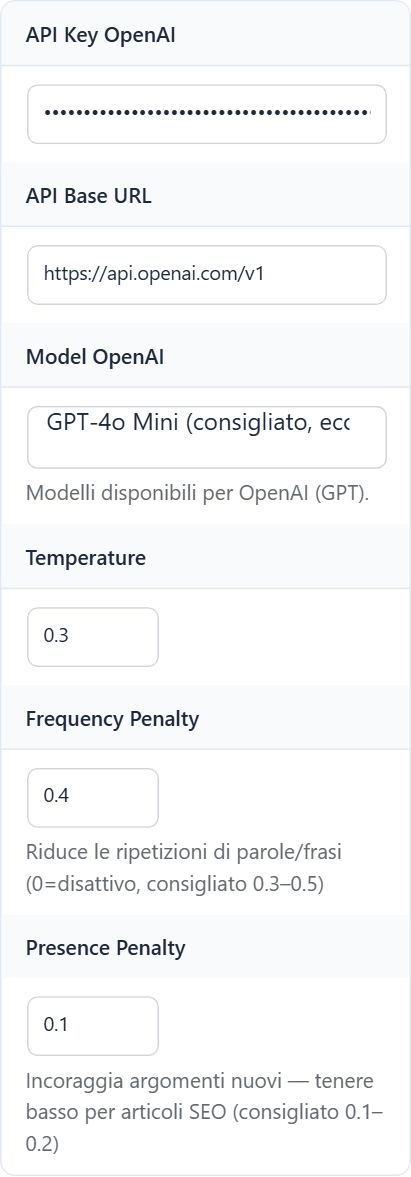
In your WordPress admin, go to AI Content Generator → Settings. Scroll to the API Keys section and paste your Google Gemini API key in the Gemini field. Click Save settings.
Step 3 – Select Gemini as the AI provider for a campaign
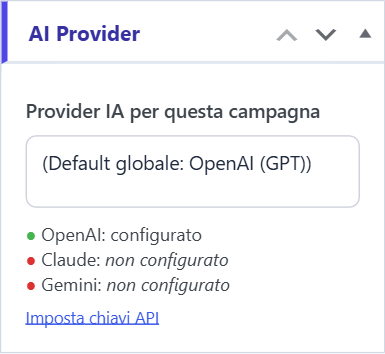
When you create or edit a campaign, look for the AI Provider panel at the top. You’ll see three options:
- 🤖 OpenAI (GPT)
- 🔵 Anthropic Claude
- 🟩 Google Gemini
Select Google Gemini. The plugin will use Gemini for all content generation in this campaign — titles, articles, SEO metadata, and images (if using AI image generation).
Step 4 – Choose the Gemini model (optional)
In Settings → Default model, you can specify which Gemini model to use (e.g. gemini-1.5-flash for speed or gemini-1.5-pro for higher quality). If you leave the model field blank, the plugin uses the default Gemini model.
When to choose Gemini over OpenAI
- Cost – Gemini Flash is one of the cheapest options for high-volume publishing
- Free tier – Google AI Studio gives you free API calls to test without a billing account
- Language support – Gemini handles multilingual content well, making it a strong choice for international sites
- Availability – if you hit OpenAI rate limits, Gemini is a reliable fallback
Conclusion
Connecting Google Gemini to AI Content Generator takes under 5 minutes. Once configured, you can assign it to individual campaigns while keeping other campaigns on OpenAI or Claude — giving you maximum flexibility in how you balance cost, quality, and speed across your content production.