
If you want Claude (Anthropic’s flagship model family) to write WordPress articles for you on autopilot, you only need two things: a working Claude API key and the AI Content Generator plugin configured to use it. The key is the digital pass that lets the plugin call Anthropic’s servers from inside your WordPress site, send a brief, and receive back a fully written draft ready to be reviewed and published.
This tutorial walks through every step end-to-end: creating the key inside the Anthropic Console, copying it without losing any character, setting up billing so the key actually works, pasting it into AI Content Generator Settings, picking a default Claude model, and finally launching a test campaign to confirm the integration is alive. If you have already done the same flow for OpenAI, you’ll notice it is very similar — Anthropic just hides the moving parts in different places.
By the end of the article you’ll have a key starting with sk-ant- saved inside AI Content Generator, a Claude model selected as the default, and a first AI-written draft in your Posts → Drafts list. The whole process takes ten to fifteen minutes the first time, and around two minutes whenever you’ll need to rotate the key later.
What a Claude API key actually is
An API key is a long secret string that identifies your Anthropic account every time some software calls the Claude API on your behalf. Claude keys start with the prefix sk-ant- and continue with a base64-like sequence of letters, digits and dashes. Anthropic uses the key to authenticate the request, attach the right billing plan, apply rate limits and (if you have multiple workspaces) decide which workspace the usage belongs to.
Two consequences matter for you. First, the key is as sensitive as a password: anyone who has it can spend money on your Anthropic account. Treat it accordingly — never paste it in a public channel, never commit it to a git repository, never send it over plain email. Second, every Claude call you make from AI Content Generator is metered: each generated article consumes input tokens (the brief, the title, the instructions) and output tokens (the article itself). Costs are predictable once you know your average article length, but a misconfigured campaign that runs in a loop without limits can burn money fast — we’ll set guardrails at step 5.
Step 1 — Sign in to the Anthropic Console
Open https://console.anthropic.com in your browser. If you already use Claude.ai for normal chat conversations, the same email works here — but the Console is a separate area dedicated to developers and API customers, with billing, usage dashboards, workspaces and API keys.
If you don’t have an account yet, click Sign up, complete the email verification (and the phone-number step Anthropic requires to fight abuse) and you’ll land on the Console dashboard. The first time you’ll be asked to create a default workspace — you can leave the suggested name or rename it to something like “My WordPress site” so you’ll recognize it inside the usage charts later.
Step 2 — Open the API keys page
Once logged in, look at the left sidebar of the Console. You’ll find an entry called API keys (in some interface revisions Anthropic labels it Keys or hides it under Settings → API keys). The direct URL is https://console.anthropic.com/settings/keys.
This is the page where every API key tied to your account lives. If it’s your first time you’ll see an empty table with a prominent Create Key button on the right. If you have already created keys for other tools (Cursor, an internal script, a Zapier integration) you’ll see them listed with their name, the workspace they belong to, the date of last use and a revoke button.
Step 3 — Create a new key for AI Content Generator
Click Create Key. A small dialog opens with three fields:
- Name — give it a label you’ll recognize later, for example AI Content Generator – my-site.com. Anthropic does not read this field, it’s purely for your own bookkeeping. The convention I suggest is one key per environment: one for production, one for staging, one for the developer machine. That way, if anything leaks, you revoke a single key and only one environment goes dark.
- Workspace — if your organisation has workspaces enabled (it’s the way Anthropic separates billing and quotas), pick the one you want this key to belong to. Otherwise the default workspace is fine.
- Permissions / scopes — the AI Content Generator plugin needs the standard Messages API scope. Leave All selected unless you have a strong reason to restrict scopes.
Click Create Key. The Console now shows you the full key, a long string starting with sk-ant-api03- followed by a long random tail. This is the only moment you will ever see the key in full. As soon as you close the dialog, Anthropic stores only a hashed version and shows you the first six characters as a hint.
Step 4 — Copy the key and store it safely
Click the copy icon next to the key. Then immediately paste it somewhere safe before doing anything else:
- A password manager (1Password, Bitwarden, Apple Keychain) is the ideal home — create a secure note titled “Claude API key — my-site.com”.
- A private note in an encrypted notes app works too, as long as the notes are not synced to a shared folder.
- Do not put it in plain-text files synced to public folders, email drafts, Slack DMs or anywhere a teammate without permission could see it. And never commit it to a git repository — even private repos get cloned and copied.
If at any point you suspect the key was leaked, come back to the API keys page and click Revoke. The key becomes useless immediately and you can create a new one in thirty seconds. Anthropic also lets you set per-key spending limits — a good habit if you want a hard cap on what a single integration can spend in a month.
Step 5 — Set up billing on Anthropic
This is the step most people forget, and the reason a freshly created Claude key returns insufficient_quota or credit_balance_too_low errors as soon as the plugin tries to use it. A new Anthropic account has zero credit and Anthropic does not auto-bill anything until you opt in.
In the Console, open Settings → Plans & Billing (or go directly to console.anthropic.com/settings/billing). Add a credit card, then either buy a one-off credit top-up (for example $10 or $20 — a small blog typically burns $1–$5 per month with Claude Sonnet 4) or enable Auto recharge so the balance refills automatically when it drops below a threshold you choose.
For safety, also set a monthly spending limit. A $30 or $50 hard cap is a sensible guardrail while you’re still tuning the campaign — once you have a stable workflow you can raise it. The limit is enforced on Anthropic’s side: when you hit it, Claude calls start returning an error instead of silently emptying your wallet.
Step 6 — Open AI Content Generator settings in WordPress
Now switch over to your WordPress admin. Inside the sidebar, go to AI Content Generator → Settings. Scroll down past the OpenAI card until you reach the section titled 🔵 Anthropic Claude.
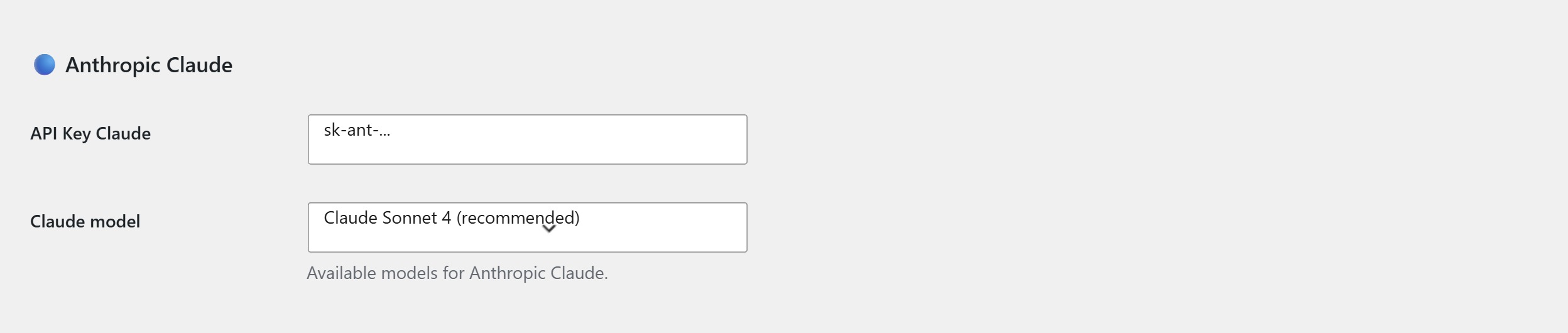
The fields you need to fill are:
- API Key Claude — paste the
sk-ant-...key you copied at step 4. The plugin masks the input as you type, so make sure you don’t paste extra whitespace before or after the key. - Claude model — pick the default model for new campaigns. Claude Sonnet 4 (recommended) is the sweet spot for everyday blog content: fast, cheap and high quality. Claude Opus is better for cornerstone articles where you want maximum reasoning quality but it costs more per token.
Click Save settings at the bottom of the page. The plugin runs a quick credential check in the background: if the key is valid the Connection status row turns green with the label “Claude: configured”. If something is wrong, the row stays red and a hint explains why (invalid key, billing not active, network blocked).
Step 7 — Make Claude the default provider for new campaigns
Right below the three provider cards (OpenAI, Anthropic Claude, Google Gemini) you’ll find the Default provider selector. Switch it to Anthropic Claude. From now on, every new campaign you create will use Claude unless you override the provider for that specific campaign — useful if you want to test prompts on multiple models side by side.
Save the page once more. You’re now ready to open a campaign and let Claude do the writing.
Step 8 — Run a test campaign with Claude
The fastest way to confirm the whole pipeline works end-to-end is to launch a single-article test campaign:
- Go to AI Content Generator → Campaigns → New campaign
- In the AI Provider metabox on the right, confirm that Anthropic Claude is selected (it should already be, since you set it as default at step 7)
- In the main column, type a single test title in the Manual titles textarea, e.g. Test article — Claude integration check
- Set the Output status to Draft so the post does not get published live by mistake
- Click the blue Generate content for selected titles button

Within ten to thirty seconds (the exact time depends on the model and the article length) a fully written draft appears in your Posts → Drafts list. Open it: you should see a properly structured article with H2 sections, paragraphs and the tone you configured. If you do, congratulations — Claude is now wired up to your WordPress site.
Troubleshooting common errors
- 401 authentication_error / Invalid API key — you probably copied the key with a leading or trailing space, or copied only part of it. Go back to the Anthropic Console and re-copy the key (or create a new one and revoke the broken one).
- 402 / credit_balance_too_low — your Anthropic balance is empty. Go to Settings → Plans & Billing and add credits.
- 429 rate_limit_error — you exceeded the per-minute or per-day rate limit. New accounts start on a low tier; usage and time on the platform raise the limits automatically. As a workaround, raise the Interval between generations in the campaign settings.
- model_not_found — the model name selected in the plugin doesn’t match an active Claude model. Switch to Claude Sonnet 4 (recommended) and try again. If you had recently selected a deprecated alias, the dropdown shows it in grey.
- The plugin saves but campaigns time out — check that your WordPress server can reach
api.anthropic.comon HTTPS. Some shared hosts block external API calls by default; ask your provider to allow outbound HTTPS to that domain.
Tips to keep Claude costs predictable
Once Claude is wired up to AI Content Generator, your monthly bill scales with the number and length of articles you produce. Three habits help you stay in control.
- Default to Claude Sonnet 4 for bulk publishing. It’s the right balance of quality and cost for everyday long-form. Reserve Claude Opus for cornerstone pages or pillar articles where you’d happily pay 5–10× more per article for the extra polish.
- Use the article length controls. A 1,200-word article costs roughly twice as much as a 600-word one. AI Content Generator’s content brief lets you cap the target length and stops the model when it goes over — set a realistic ceiling and you keep cost per article inside a tight band.
- Always set a monthly spending limit on the Anthropic side. It’s free insurance against a misconfigured cron, a campaign that fails to advance the queue and keeps regenerating the same title, or any other corner case that could otherwise drain your credit overnight.
You’re done
That’s the whole flow: create the key inside the Anthropic Console, top up billing, paste the key into AI Content Generator Settings, pick a Claude model, mark Claude as the default provider and run a one-article test campaign to confirm everything works.
If you want to add OpenAI or Gemini as fallback providers, AI Content Generator supports running them in parallel — when the default provider fails or is rate-limited, the plugin can fall back to a second one automatically. Configuring them follows exactly the same pattern: get the key from each vendor’s console, paste it in the matching settings card, pick a model, save. From there, every campaign can use the provider that best fits the brief, and Claude becomes one of your reliable workhorses for high-quality long-form content.